
Release-opmerking – 27/11/2025 (samenvatting)
Met deze update hebben we diverse verbeteringen en nieuwe functies toegevoegd, waardoor u uw dagelijkse werkzaamheden in zowel de wijngaard als de kelder nog eenvoudiger kunt digitaliseren.
Opgeloste problemen (bugfixes)
Met deze release worden onder andere de volgende problemen opgelost:
- It is again possible to edit winery details (winery configuration).
- You can now add a bottling step as a task in the Task Manager.
- The date of a soil-cultivation registration in the Wijngaard can now be edited after saving.
- The search function in dropdown menus works properly again, making long lists much faster and easier to navigate.
Nieuwe functies
1) Additional languages
The Platform is now also available in German, Spanish, and Romanian. You can change the language in the top-right corner of your screen.
2) Kelder inventory (Kelder Library)
In Inventory → Kelder library, you will now find two clear sub-menus:
- Containers: a library to digitise bottles, BIBs, and other packaging types used on your winery.
- Additives: a library to digitise products used in the Kelder, including lot numbers.
This makes adding vinification products to wine registrations faster and easier. Below you will find the full explanation of this new feature.
3) Splitsing/samenvoeging van een kelderbatch (CBN)
- You can now split a Kelder batch with multiple tanks into new batches per tank, without moving volumes.
- You can also merge two batches into one new batch, again without volume transfers.
4) Export to CSV (Excel)
You can now export data to CSV/Excel for:
- Bottling steps
- Post-bottling steps
- Harvest module
With this update, this export function is now available for all registrations made in the Platform.
Helpdesk: Bibliotheek met kelderadditieven
In deze handleiding wordt uitgelegd hoe u vinificatieproducten ("additieven") in de kelderbibliotheek kunt digitaliseren, gebruikssituaties met vooraf ingestelde doseringen kunt toevoegen en lotnummers kunt registreren voor traceerbaarheid.
Voordat je begint
In Trace your craft, all products used in the Kelder must be digitized in the Additives Library.
We recommend doing this in advance, during a calmer period before harvest, so you are not blocked later when registering Kelder steps.
Waar vindt u de additievenbibliotheek?
- Open the sidebar.
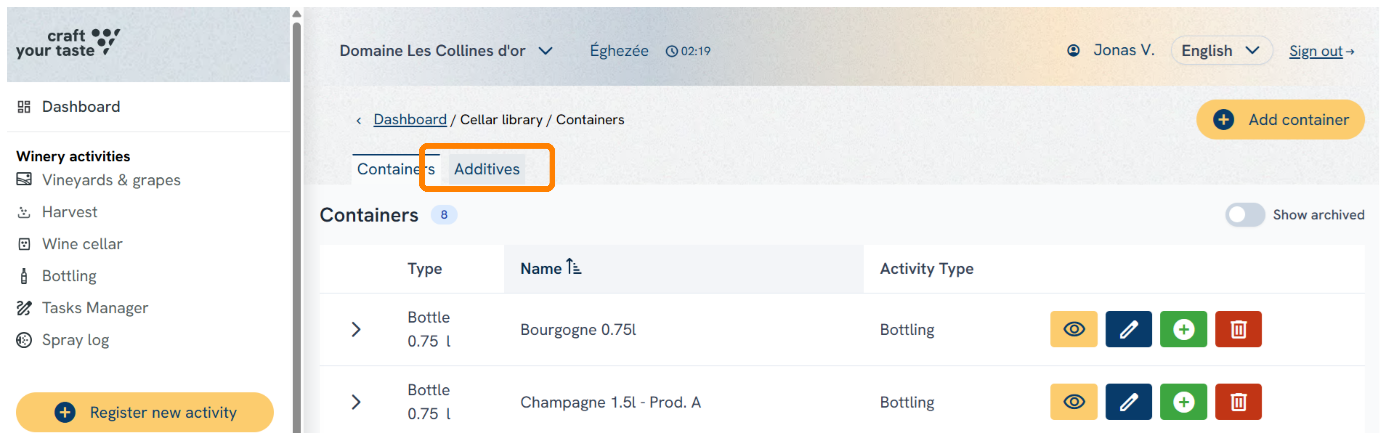
- Go to Inventory → Kelder library.
- You will land on the Containers tab first (bottles, BIB, etc.).
- At the top of the page, switch to the second tab: Additives.
Als u dit tabblad voor de eerste keer opent, is de tabel leeg. Dat is normaal.
Belangrijke opmerking
Since the latest update, digitizing Kelder additives is mandatory.
If a product is missing from the library, you won’t be able to add it during a vinification registration. Taking a moment to digitize your current products now will save time later.
Voeg een nieuw additief toe
- In the Additives tab, click the yellow button “Add additive” (top right).
- A pop-up form opens with two main sections:
- General information
- Situations
1) Algemene informatie
Vul de volgende velden in:
- Vinification substances
Select the substances contained in this product. The dropdown contains the EU-listed substances for the QR-code regulation.
This will allow Trace your craft to generate ingredient QR codes per Bottle Batch in the future (planned for 2026).
If a substance is missing, choose “Other”. - Name
Commercial name of the product. - Description of additive
Short product description (from the label or technical sheet). - Purpose of additive
The goal of using this product (what you want to achieve in the wine). - Dedicated wine colors & wine styles
This will be used in a future feature to filter recommended products based on Kelder Batch characteristics (e.g., red still wine).
It will not block you, but helps shorten the product list during “Add vinification product”.
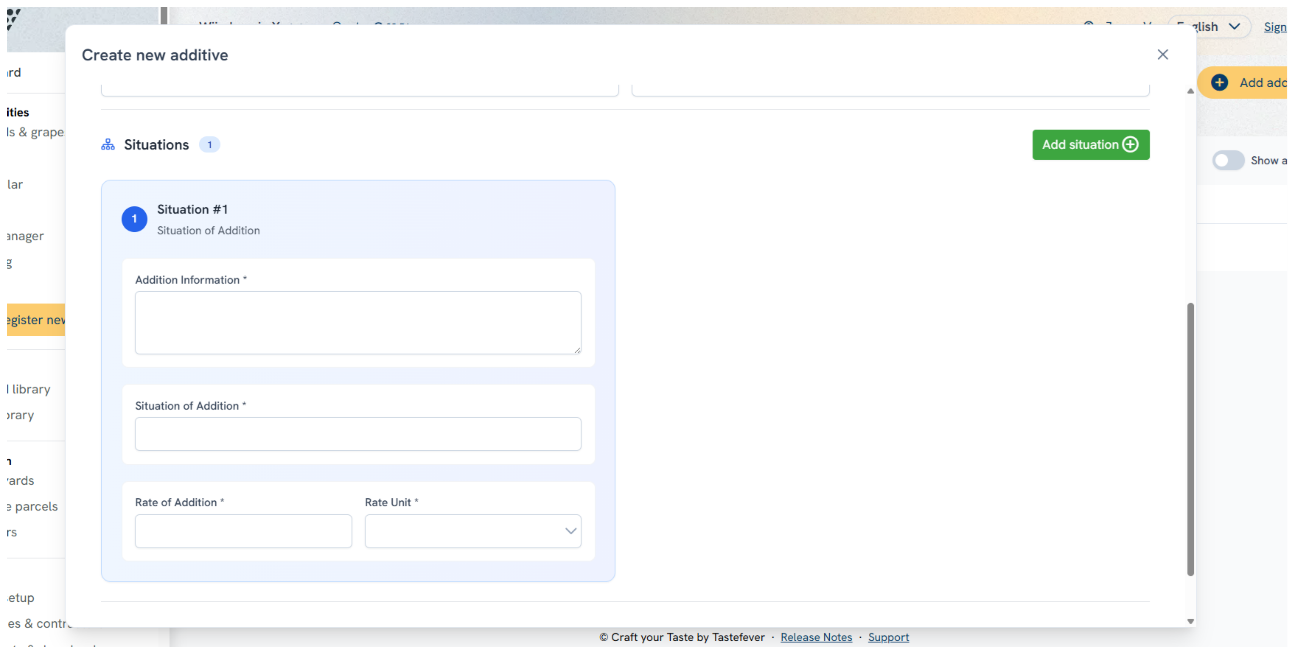
2) Situaties (vooraf ingestelde doseringsscenario's)
This section helps you save common use cases with a predefined dosage.
Voorbeeldsituatie: Stop malolactische omzetting – 20 mg / 100 L wijn
Click “Add situation” (green button) to add as many situations as you want. In the “Additional information” field, you can describe the recommended way to add this product to the wine, or share practical guidance on how it should be used in the Kelder.
Later, during “Add vinification product”, you can select a situation and the Platform will:
- show the correct dosage automatically
- calculate the required quantity for each storage unit (cuve, barrique, etc.)
3) Bewaar het additief
When all details are complete, click Save.
If successful, you’ll see:
“Additive created successfully.”
Het additief verschijnt nu in uw overzicht
Lotnummers toevoegen aan een additief (traceerbaarheid)
For food safety and traceability, it’s important to record lot numbers for products used in your wines.
Trace your craft lets you register every lot number per additive.
Hoe voeg je een lot toe?
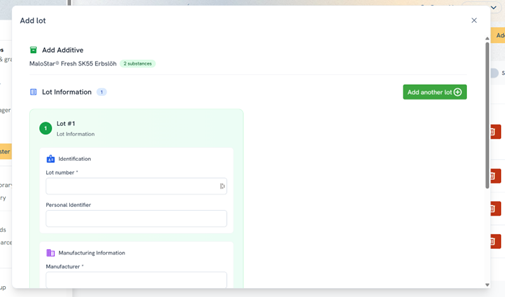
- In the additives overview, click the green “+” button next to the product.
- A form opens — fill in the lot information.
Belangrijk: dit is een bibliotheek, geen voorraadsysteem
The Platform does not ask you to enter quantities in kg/L.
You can store lot numbers for traceability, but you cannot track exact remaining stock per lot yet.
U kunt kiezen uit een van de volgende benaderingen:
- Track packages in stock
Add a lot for each package, even if the factory lot number is the same.
The system will warn you about duplicates, but allows saving. - Track lot numbers only
Add one entry per unique lot number, regardless of how many packages you have.
Velden in het lotformulier
- Lot number
Official factory lot number from the package. - Personal identifier
Your own internal ID linked to this lot number.
We display this ID in the Platform because it’s often clearer than the factory code.
Recommended: write this personal ID on each package with the same factory lot number. - Manufacturer
Producer of the additive. - Storage location (optional)
Free text field to note where you store the product. - Expiration date
Expiry date as shown on the package.
To add multiple lots at once, click “Add another lot” on the right side of the form.
Korte samenvatting
- Digitize your Kelder products in Inventory → Kelder library → Additives.
- Add an additive with General information + optional Situations (preset dosages).
- Save the product, then register lot numbers via the green + for traceability.
- Quantities per lot are not tracked yet — this is a library, not a full inventory system.
